
Organization
Two-factor authentication
Every account requires a second factor. There is no opt-out.
Every account requires a second factor. It cannot be disabled.
Sign-in flows
| Situation | What happens |
|---|---|
| New signup | Verify email → enroll an authenticator → save recovery codes → signed in |
| Accepting an invitation | Same enrollment path |
| Returning user | Magic link → 6-digit code, or a passkey → signed in |
| Lost authenticator | Magic link → recovery code → enroll a replacement immediately |
Authenticator apps
SimpleSCEP supports standard six-digit TOTP codes, including 1Password, Authy, Google Authenticator, Yubico Authenticator, and compatible password managers.
Each code can be used only once.
Recovery codes
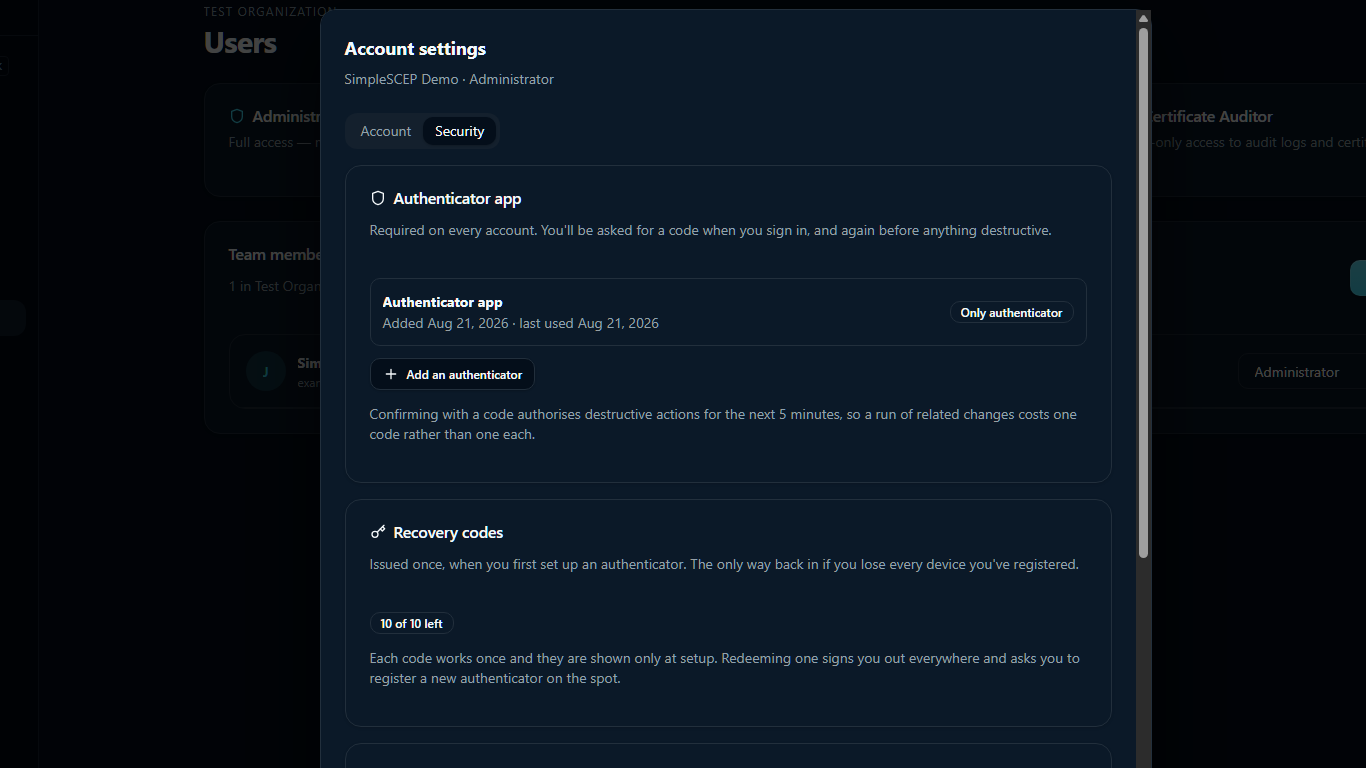
You receive ten single-use recovery codes during enrollment. They cannot be viewed or regenerated later. Add a second authenticator before the codes run out.
Store recovery codes separately from your authenticator. The Security panel shows the remaining count.
After using a recovery code, you must enroll a replacement authenticator before signing in.
Security settings
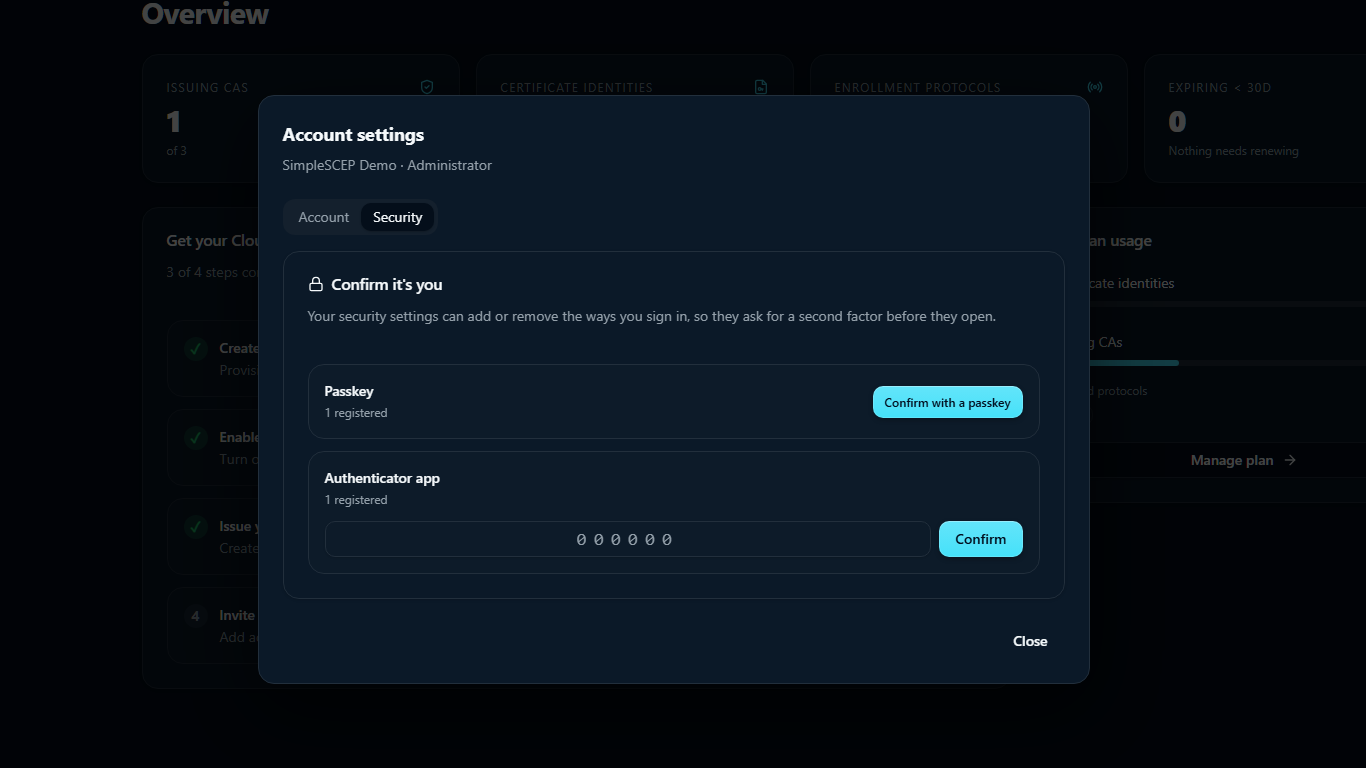
Open the account menu and select Settings → Security. Opening the tab requires second-factor verification and authorizes protected actions for five minutes.
The tab contains Authenticators, Recovery codes, and Passkeys. Use Add an authenticator to register another TOTP app.
Passkeys
Passkeys are optional and can replace a TOTP code at sign-in. Select Register a passkey on the Security tab. Support requires a secure connection and compatible device or security key.
An authenticator app remains required even when passkeys are enabled.
Step-up
These actions require second-factor verification within the last five minutes: deleting a CA, rotating an issuing CA, inviting a user, changing a role, and removing a user.
Account recovery
Recovery codes are the only way back after losing all authenticators and passkeys. Administrators cannot reset another user's second factor.
Confirm that you have recovery codes before replacing a device.
If you are the only administrator and you are locked out, contact support.
Failed attempts
A sign-in challenge expires after several failed attempts. Request a new magic link to try again. Failed attempts do not lock the account.